In this article
Importing a Model
You can import a new model into Forsta Plus from a specially formatted Excel file. To find the Import functionality, click on the drop-down on the Create model button. You will need to follow the wizard in order to be able to import your model structure into Model Builder.
Importing a File
- On the Create new - import screen, click Choose file.
- Find and select the .xlsx file that you have previously saved
- Click Preview import.
- Review the file. If it is correct, click Import model (arrowed).
The selected file is indicated on the screen - .
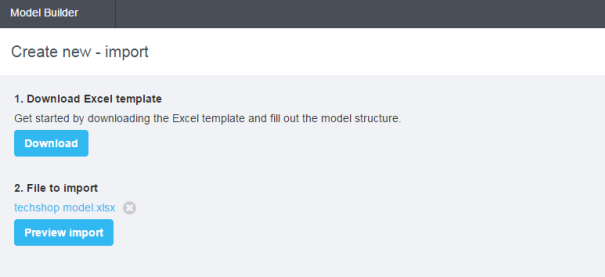
Figure 1 - Selecting the file to import
The preview page opens - .
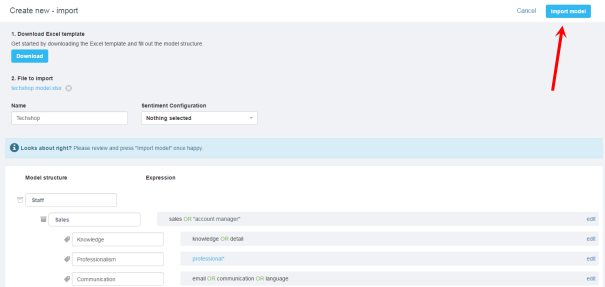
Figure 2 - Previewing the import file
The model is added to Model Builder - . Don’t forget to 'Save as version' and set to 'Active' once you are ready to use it in Forsta Plus.
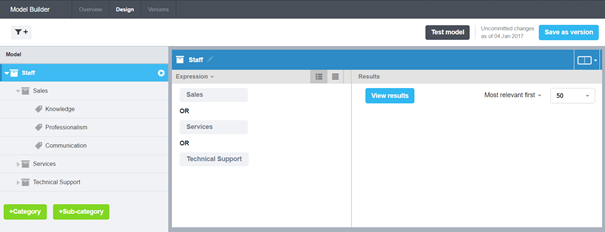
Figure 3 - The file in Model Builder
If the file has some errors, you will need to fix them before you can import the file. You will see the errors, as there will be an error caution in front of the category name and the expression box will be colored red - .
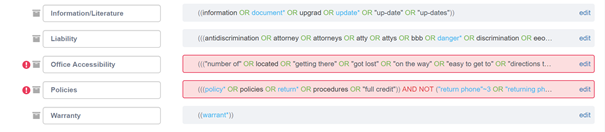
Figure 4 - Example of a file with some errors
To fix the errors, click on the edit link and a pop up box will appear which will show the expression that needs to be fixed - .
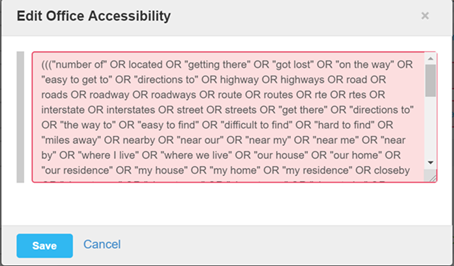
Figure 5 - Example of a file with some errors
You will need to go through the expression and correct any mistakes. Things to look out for include:
- Ensuring you have the correct number of parentheses (using Notepad++ helps to show that you have the correct number, and helps to align where these should be put).
- Ensuring you are using Boolean operators in the correct places and that you have not got repeated operators. Ensure your Boolean operators are all written in full upper-case.
- If you are importing a model from another vendor, you will need to remove any parts of the expression that are specific to that vendor. If you are having difficulty working this out, please speak to Support, who will be able to help you.
Once your model has no more red boxes, you will be able to import your model.
Downloading an Excel Template
To download an Excel template:
- In Model Builder, click on the drop-down on the Create model button.
- Click Download.
- Open the template to see an example of how the file must be formatted for your categorization model - .
- Save your file as an .xlsx file.
The Create New - import screen opens - .
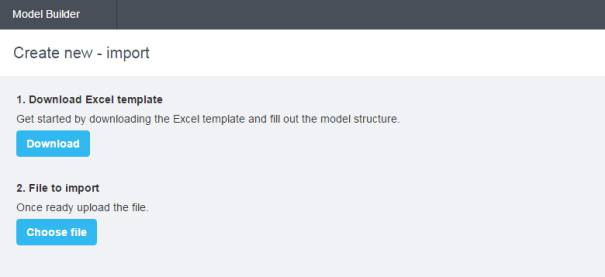
Figure 6 - The Create New - import overlay
The Excel template downloads.
You can use the downloaded template as the basis of your file.
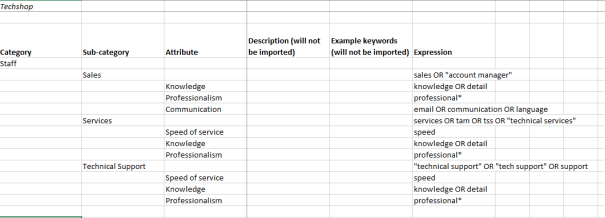
Figure 7 - Example of an Excel template
Add your model definition to the spreadsheet in the required format (don’t forget to add a name in the first column and row). Ensure you follow the format, with category, sub-category and attributes on different rows. You can also add in an expression, which will be imported into the model. Do not leave any line spaces between the Category header and where you start adding category names.