In this article
To test whether your expression is working well, click Results in the right pane opposite your expression.
You will see that the keywords from the expression have been highlighted in yellow - . This will help you to assess why the verbatim was captured and whether or not it is correct for the category, sub-category or attribute that you defined.
Once you have clicked Results you can filter your result set by using the search bar at the top of the right pane.
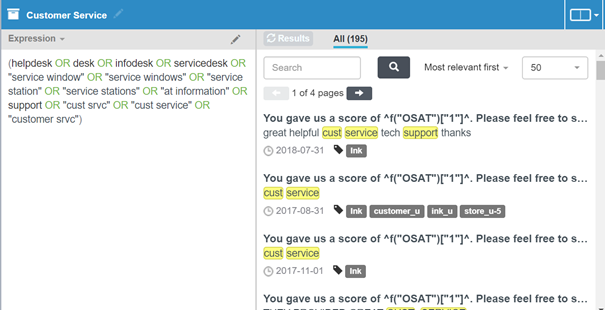
Figure 1 - Testing an expression - 1
If you make a change to the expression (either remove or add keywords), the Results button will go blue, showing that you can refresh your results. If you do this before saving the expression, you will be able to see ‘All’ results as well as ‘will add’ and ‘will remove’. This allows you to see what effect your changes will have on your model before making the save - .
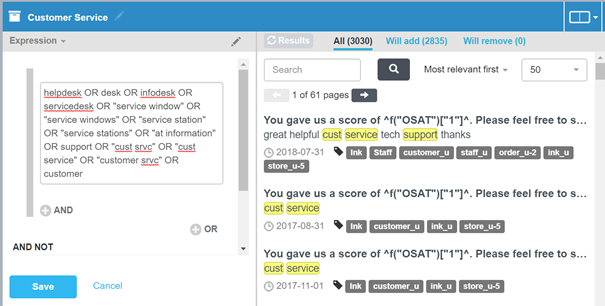
Figure 2 - Testing an expression - 2
You can sort the results by ‘Most relevant first’, ‘Least relevant first’, ‘Newest first’, ‘Oldest first’ and 'Random order' so that you can test a good sample of the results.
To view only the results, click on the Split view icon and select Results only.