In this article
If you have Genius Text Analytics on more than one survey, the results that you see when clicking on ‘View results’ are from all of the open text verbatim that have the Genius folder attached for analysis. To view results from a reduced set of surveys, use the survey filter.
- Click the Filter button to open a list of the survey names and related Project IDs that have had Genius Text Analytics added to the open text variables. You can choose which open end you would like to filter on by selecting this on the right hand side of the survey name - .
- Select the survey(s) you wish to use and click Apply or select Time Range.
- On completion, click Apply.
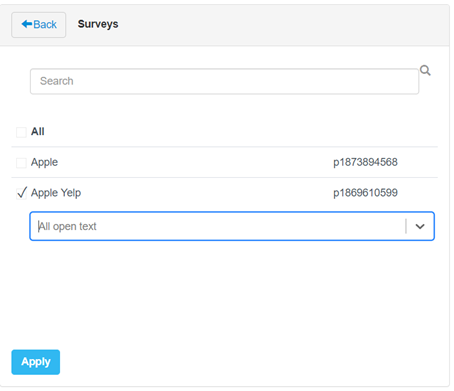
Figure 1 - Example of the survey filter
Under Time range you can choose from a list of options (last 30 days, last 60 days, last 90 days or last 120 days) or select a custom range - .
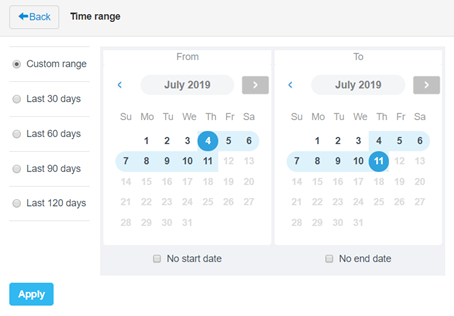
Figure 2 - The Time range overlay
Once you have applied the filter you can perform your search and you will only see results from the selected surveys, questions and / or date range.
The filter that has been applied is indicated next to the filter button - . This will remain visible for the duration of the session or until you cancel the filter by clicking on the X to remove it.
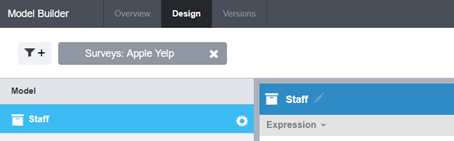
Figure 3 - A filter applied
If you apply a filter to a survey, it will be remembered for that session. If you switch screens during your session, the survey filter will stay activated. To remove the filter, click the delete icon to the right of the filter name.
Warning
Save your work at regular intervals and ensure you save before you leave Model Builder unattended (go to Inactive-Screen Lock for more information).