In this article
Your expressions are made up of the keywords or tags that describe your category, sub-category or attribute. Click on the Edit icon to start writing your expression - .
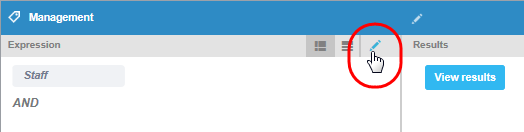
Figure 1 - Starting the expression
You build up the expression by adding Concept Miner tags and combinations of keywords, and by testing the expression against your verbatim from the survey to ensure that they are collecting the correct verbatim for that category. When you start out, you can test keywords and tags in the expression pane by clicking on View results. If you find you are getting verbatim that shouldn’t be in that category, then you will need to refine your expression by using more targeted keywords or proximity indicators and AND NOT operators. Bear in mind that excluding keywords using AND NOT will ensure the entire verbatim is excluded from that category, even if both relevant and irrelevant information is in the verbatim.
You will also need to add in misspellings or use the fuzzy logic operator to ensure that misspelled words and words that are written in text speak are included in the analysis, although some of these may be captured by the Concept Miner tags. Get your list of Concept Miner tags by clicking # - your list of tags appears. Select the relevant tag, and this will create the correct syntax for adding it to the expression.
If you have a longer expression, the process can be simplified by using the Search page (go to Search for more information). Here you can test tags and keywords, test the proximity of the words to one-another, and test the effect of using an AND NOT on your expression. It is recommended to review a good set of random results to validate that the expression brings through a good percentage of accurate hits. You should aim to reduce noise (unwanted hits) as much as possible, but this may not always be possible due to the unlimited number of ways people express themselves in text. You will need to decide how much noise is acceptable for each category. If you have an active core, you can also see other tags that are related to the verbatim, which you can add to another point in your model, to ensure that you’re capturing everything. A simple goal is to improve the results until the point of diminishing returns — where the effort you invest starts to outweigh the improvements in your results.
Important
When writing expressions in Model Builder, you should save the expression at regular intervals and between adding new keywords or tags, as any changes will be lost if you leave Model Builder for 30 minutes with no interaction. This is especially valid if using a separate tab with your Search page opened.
You can use the different AND and OR boxes to separate parts of your expression and to format it for easier reading. You might like to keep certain concepts or words and misspellings together so that it is easier to read and edit afterwards.
AND boxes will always be associated with an OR box. This means that at least one of the keywords in the AND box will need to be present in the verbatim as well as at least one of the keywords from the OR box. You can have a separate OR box that will not have the AND box association, if you click on the button for a different OR box. The gray line on the left side shows you the association between the boxes - .
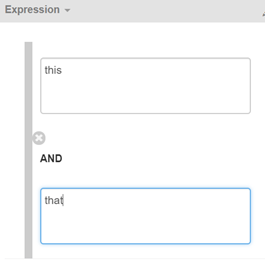
Figure 2 - Example of the association indicator line
The global AND NOT box towards the bottom of the pane - is used when you have some keywords that need to be excluded from the entire expression. You can also add local AND NOTs in the other OR and AND boxes.
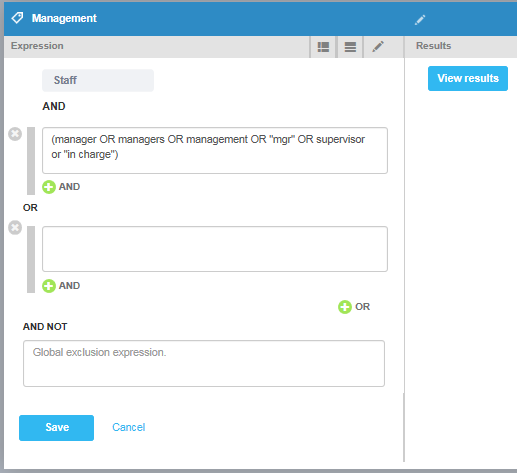
Figure 3 - The AND, OR and AND NOT fields
Warning
Save your work at regular intervals, and ensure you save before you leave Model Builder unattended.
Adding Comments
You can add comments into an expression to provide information for future reference. These comments will not be included in the analysis, yet can be very helpful for keeping notes, documenting your work in progress, or describing the expression you're writing.
To add a comment:
Type the characters /* at the beginning of the comment text, and the characters */ to close the comment - .
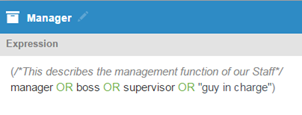
Figure 4 - Example of a expression comment
Switching Between Views
You can switch between views by clicking on the icon on the right hand side of the expression pane - :
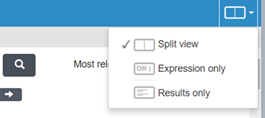
Figure 5 - The split screen options
- Split view shows you the expression, with the results shown next to it.
- Expression only shows you just the expression, if you want to be able to look through the expression without looking at the results
- Results only shows you just the results, without the expression next to it.
Error Messages
As you type your expression, it is validated in the background. In the event you make a mistake and your expression becomes invalid, if you are still in the expression box the sides will go red. If you leave the expression box and the expression is not valid, an error message will be displayed - and you will not be able to save your expression until the errors have been rectified. You will need to ensure that the parentheses match up, that all the Boolean operators are in capitals and that the required formatting is correct. Checking your expression in an application such as Notepad++ can help to verify the parentheses are matched.
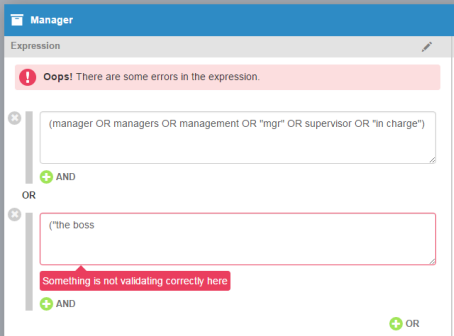
Figure 6 - Example of an error message