In this article
Model Builder supports versioning of the categorization models. This is to keep models consistent so that you have a benchmark for comparisons with previous periods. Maintenance of a model is important, and by using versioning you can save up all your changes and launch the complete version of the model on a particular date, enabling you to keep track of when the changes were made.
For a model to be used in Forsta Plus, you must save it as a version and set it as Active. The first time that you save a model as a version, you will see that the checkbox that asks you whether you want to set the version as Active is ticked by default. You will see that the label changes from Design to Active. Once launched the model is given a version number, and any edits that are made to the model after it has been launched are made in the ‘working version’. The next time you ‘Save as version', the ‘set this version as the active version’ checkbox will not be checked and you will need to tick the checkbox to make it the active version that is used in your Forsta Plus analysis. Any changes to the structure of the model (for example if you have added any new categories, sub-categories and attributes) will need to be updated in the Forsta Plus Database Designer table. Refer to the Genius part of the Professional Authoring documentation for further details.
You can set any version as the Active version. To set a version as Active, go to the cogwheel icon in the Versions list and select Set to Active.
The Save as version button is located towards the right side of the Design page for the Model - . Update text next to the Save as version button tells you whether you have uncommitted changes and the date that the first set of changes were made. Once you save the next version of the model, this update will reflect whether you have made any further changes.
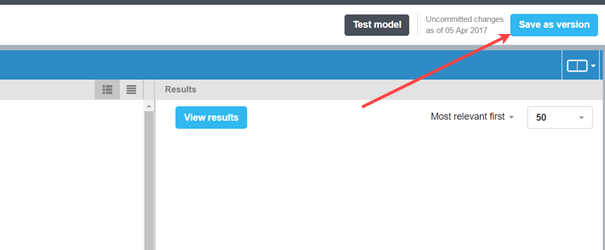
Figure 1 - The Save as version button on the Design page
To save your model:
- Go to the Design page for the model you wish to launch.
- Select the Save as version button in the upper-right corner of the page.
- Add a name for the version as appropriate (we recommend using the model name and a date), and a description for future reference.
- Click the Save button.
- If you have made changes to the structure of the model (that is, you have added, moved, renamed or deleted any categories, sub-categories or attributes), you will need to update these in the model hierarchy (in Database Designer) in Forsta Plus, or use the Automatic sync feature. This syncs the model structure to the database designer table, which is described in the Genius part of the Professional Authoring manual.
The Save model overlay appears - .
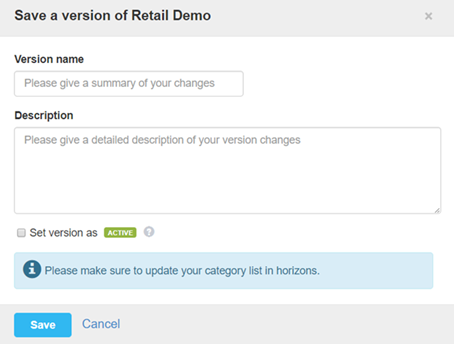
Figure 2 - The Save model overlay
If this is the first time you have saved the model, the ‘Set version as active’ checkbox will be checked by default. This sets the model to Active so that it can be seen by Forsta Plus. If it not the first time, you will need to check the checkbox to make the version ‘Active’. You might not want to set every save of the model to active as this will affect the results that you get in Forsta Plus.
The model is “locked” and is saved. If you have used a Concept Miner core, it will be frozen at this point as well. If you make a subsequent change to your Concept Miner core, you will need to save your model version again in order to take advantage of it (e.g. if you delete a tag and re-create it with a different confidence score).
Note: In the event one or more categories or attributes are empty then a message will be displayed informing you of this.
The next time changes are made to the model, a new “working version” will be created automatically and the changes will be made to that version. That version will then remain the working version until it is saved, whereupon it will be locked and a new working version will subsequently be created.
All changes, such as changing to the sentiment configuration, switching on Uncaptured Attributes, editing a Concept Miner core and changing category names, will need to be saved as a version in order to see these changes reflected in your project in Forsta Plus. The new version will need to be set as Active.
If you have made structural changes to the model, that is you have added new categories or attributes, you will need to update your Database Designer table in Forsta Plus to reflect this change. The instructions for this are given in the Genius part of the Professional Authoring manual.