In this article
After creating a core, you can analyze the topics to assess what has been found and decide its relevance.
Click on one of the topics to view the detail contained in the topic. You will see the top words that make up the topic, and the verbatim that are captured within it - . The bigger and darker blue the word, the more relevant it is to the topic. Less relevant words will be smaller and lighter blue.
The verbatim are sorted by confidence level, so the posts that the system considers to be the best match for the topic are shown first (highest confidence). When viewing the topic, look at the top words and then go through the verbatim with the highest confidence to gain an understanding of what the topic is about - make sure that ‘Highest confidence first’ is selected. Some topics will be very evident, some will seem as though they are almost a topic but could do with some work, and some will not be good topics. Go through the key topics and note the ones that make sense, along with their top key words.
Note: As machine learning algorithms put the analysis into a numbered vector space, the confidence level either tightens the area of the topic (i.e. high confidence) or relaxes it, so that it captures more, possibly less-relevant data (i.e. lower confidence). You will need to check each topic as there is no easy way to define what the confidence level should be.
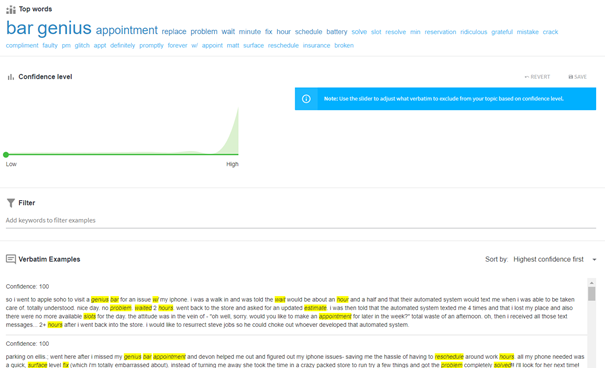
Figure 1 - Viewing the topics and verbatim
The green Confidence level slider indicates the distribution of the documents. As you move the slider, the confidence level is displayed and this confidence selection will change the verbatim viewed below - . To check that your topics are capturing only the verbatim that you’re expecting, click the drop-down arrow and select the item denoted ‘Lowest confidence first’ (1) and use the slider (2) to capture the level of confidence that still gets the verbatim that are expected.
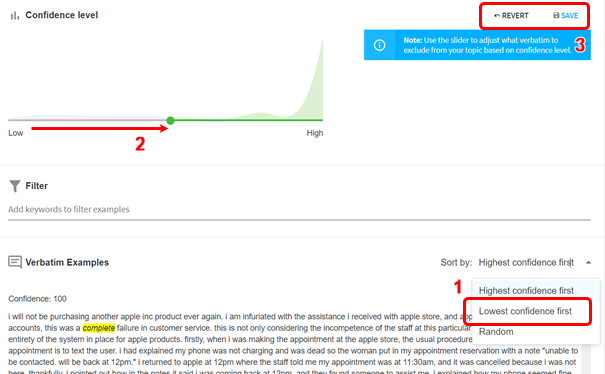
Figure 2 - Setting the confidence level
When you are satisfied that you have captured the correct confidence level, click Save (3) to store the confidence level. This is the level that will be used for all analysis with this core, unless you decide to change it later.
If you have changed the confidence level without saving it, and want it back at the previous level, click Revert, which will take you back to the previously saved confidence level.
You can use the filter field to search for verbatim examples that contain certain keywords. This will show you only those verbatim in the sample that match the search words.
The Core details page:
The core details page - gives you more information about your created core. Use it to check on the number of topics you should be selecting for subsequent cores and for other meta information.
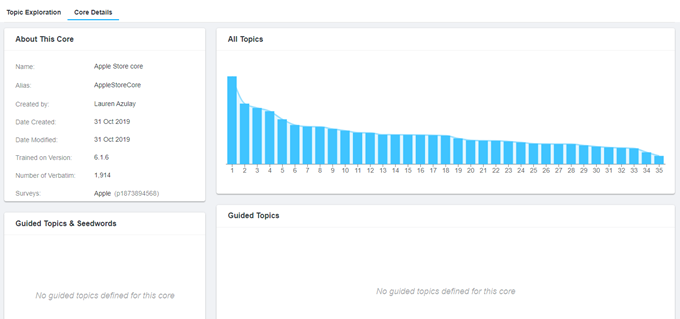
Figure 3 - Example of the Core details page
The number of topics should be cut off where there is a clear drop in the bar graph (not at the start, but further down the list). In the above example, you might want to cut the topics at 33, but actually 35 seems reasonable. You can try up to 50 topics, but if there is a big drop off in the graph you should cut your topics at the number where it drops, as you could damage the accuracy of the good topics by looking for more (find number of topics selection in the advanced section).
If you have included guided topics, these will be displayed in a separate graph, below the unguided topics. In the example screen-shot below, there are 40 topics in total – 30 unguided and 10 guided topics - .
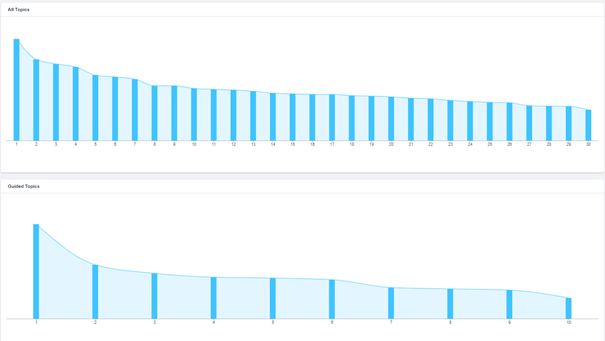
Figure 4 - Unguided topic correlation graph (above) and Guided correlation graph (below)
From the Core Details page you can edit the name of your core and the name of your core alias – click on the pen edit icon next to the current name. Remember that if you change either of these, you will need to update any references to the topics in your categorization model, so once you have started to use the Concept Miner core in a model you should avoid changing it if it is not absolutely necessary.
If you have used guided topics, you will see the name of the topic along with the seed words used - . This is currently for reference purposes only.
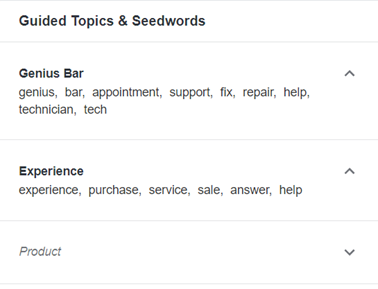
Figure 5 - Example of the guided topics and seed words
Creating your core with guided topics - Advanced
Now that you’ve understood your data a bit better, if desired you can then start to work on a new core based on what you now know from your first set of topics from Concept Miner. Using your knowledge through adding Guided Topics will give you a more accurate set of topics for use in your categorization model.
You can select the number of topics that is relevant for your dataset (see Core Details above for more information about this) and add some guided topics and seed words. Giving Concept Miner some guidance on what to look for in the text is a great way to add your knowledge to the analysis, so that it knows where to start and what do look for. If you already have a categorization model or a code frame, you might use that knowledge to seed Concept Miner here, or use the key topics that you’ve noted from your previous Concept Miner run(s).
You can either add the guided topics and key words manually or through the ‘Import from file’ link.
To add it manually, add the topic name that you want to use into the topic name field on the left - , and add the words that Concept Miner needs to look out for in the field on the right. Press Enter between each word and it will form a pill that will identify each seed word. Topic names can be more than one word. Seed words can only be one word for now. If you try to add a topic name without adding a list of seed words, an error will be indicated and you will not be able to continue creating the core, and the same will happen if you add seed words with no topic name. Click the blue +ADD TOPIC link to add more rows for further topics.
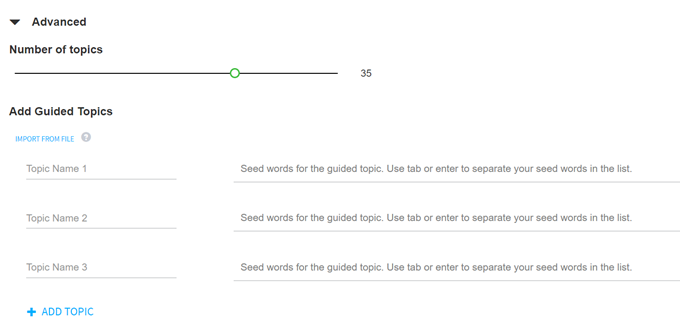
Figure 6 - Adding topics
To use the ‘Import from file’ function, create a file as follows:
Open Excel and put the name of the guided topic in the first cell (A1). The name of the topic can be more than one word. Then add your seed words in the cells next to the name of the topic. Seed words currently can only be one word - .
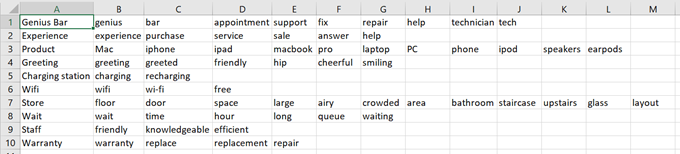
Figure 7 - Example of an Excel file with seed words
Save the file as a .csv file and then use the ‘Import from file’ button to load it into the interface. On completion the file will look as in the example below - .
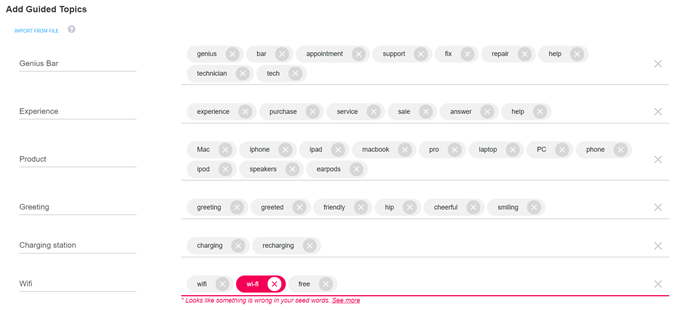
Figure 8 - Example of the resulting .csv file
You will not be able to create your core if you have any errors. You can cancel the incorrect word (wi-fi is seen as being two words) by clicking on the X to delete it. Once you have deleted it, you will be able to create your core.
You are recommended to keep a backup file of the topics and seed words that you have been testing so that you have a record and can add and delete topics and keywords that have not worked.
Tip:
When the Concept Miner runs, it first prepares the data. Part of that process is lemmatization, which breaks the word down into its root. This means that you do not have to add all forms of the word, but just the basic word, for example, Service instead of service, serviced, services, servicing, etc.