In this article
Once you have a core that you’re happy with and you have saved the confidence levels on the topics that you want to use in your categorization model, you need to do four things:
- Attach the core to the model you wish to use it in. To do this, click on the Models link in the Navigation bar, click into the model (or create a new model), and select the ‘Overview’ tab - . Select the core that you wish to use in the Concept Miner Core drop down list.
- If you attach a core to a model, you will need to sync the data to the core and to the model. This is to ensure that the data that you wish to work with has been tagged with the topics so that you are returning results that are accurate for that core. The first time you go into your model after attaching the core, you will see that the data is not yet synchronized. In the example below, it shows 0% sync and shows the name of the core.
- You are now ready to use the topics from your core in your categorization model. Set up a category and, in the expression box, start typing #. You will see the list of topics from your Concept Miner core appear in the list. You will not see any topics that you have hidden; only those that remain in your list. Choose the relevant topic from the list.
- Remember to save your model so that the core is used in your analysis. If you make any subsequent changes to your core, remember to save an active version of your model so that the new changes are used in the analysis.
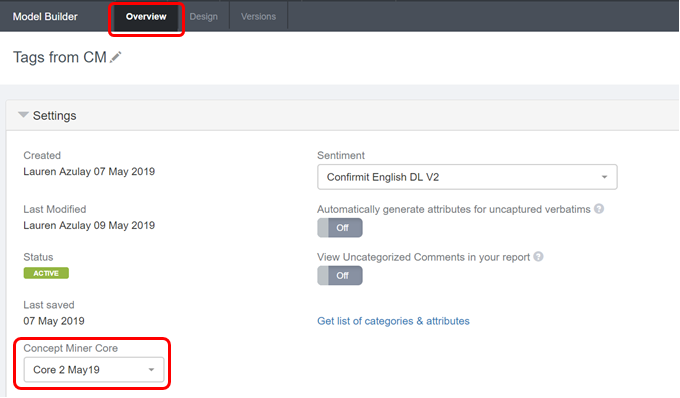
Figure 1 - Attaching a core to the model
Click on the sync arrows and you’ll see that the core will start to work through the data in the account. It might take some time to do this if there is a lot of data or if it is in a queue, but you will eventually see the number start to move.
If you have a survey filter, it will only sync to the surveys that are currently shown in the filter. If you want this model to look at a specific source, select this source as your filter - .

Figure 2 - Syncing the core
You can add keywords, Boolean operators and Concept Miner topics to your expression syntax - .
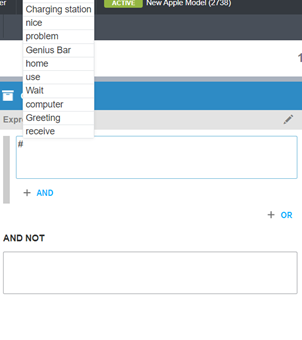
Figure 3 - Adding the tags
The topic syntax will be for example: #cm.AppleStore:"Warranty" – i.e. #cm.{coreAlias}.{“topicName”} - , but this is written in for you if you select directly from the list. You can see that the core alias is referenced in the expression, so if you change the core alias name or if you change the core, you will need to tidy up all Concept Miner references in your model.
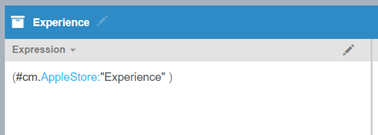
Figure 4 - Concept Miner syntax
When viewing results, now that the core has worked through and tagged all your verbatim, you will see the topics as extra meta information for all your verbatim or documents. The topic will be highlighted green if it is the topic that has been used in the expression that you’re currently viewing results for. The topics will be grey if they are contained in the document but are not part of the current expression that you are viewing - .
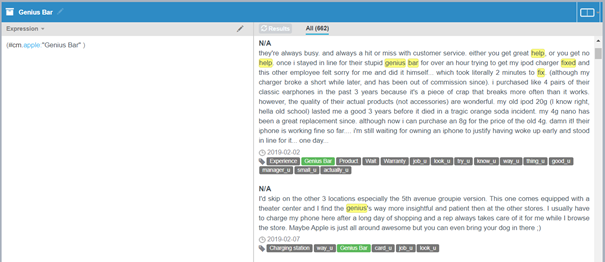
Figure 5 - Showing the topics for each verbatim
Concept Miner is a great way to quickly build up a new categorization model or to reduce the uncategorized comments on an existing model. For existing models, click on ‘Test Model’ and check the uncategorized comments for any topics that you can add into existing expressions.