In this article
First you need to create a core:
- Click Create new core towards the right side of the page.
- Provide a name for the core.
- Provide an alias for your core.
- Choose the data set that you want to run through Concept Miner.
- Clicking the Edit button on the side of the data source allows you to filter the date of the data you select - . Depending on the amount of time selected, you will see the number of verbatim displayed in green, below the project name. This could help you reduce the number of verbatim if you have more than 50,000 (see point 4,above).
- Decide how many topics you want to have in your core (35 is the default number - you should keep it at 35 for your first core iteration). To see this option, click the arrow next to ‘Advanced’ - .
- Click the Create core button at the bottom of the page.
The Create core page opens - .
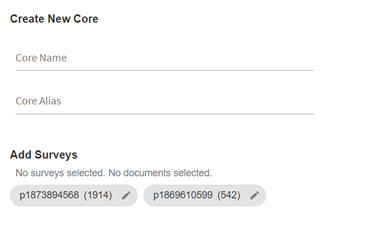
Figure 1 - The Create core page
It is recommended to give your core a descriptive name, such as the data you have chosen to run it on, so it is easier to find later.
You will see that as you type the core name, the core alias name will be copied across, with no spaces. The core alias will be used when using the topics in your categorization model, so it’s a good idea to use a name that you will recognize outside of Concept Miner. You can keep it as the name of the core (with no spaces) but then make sure that any subsequent core names are not identical. A core alias must be unique in the account.
You will see all the projects that have previously been run for Text Analytics – you can choose one or more of these. Note that you must have more than 100 documents in the project. If you have more than 50,000 documents, the Concept Miner will take a random sample of 50,000 and run the core on this. It is worthwhile running the core on multiple projects if they have the same kind of data.
Bear in mind you can only use one core per categorization model, so if you are using one model across all surveys, choose the most relevant data sources.
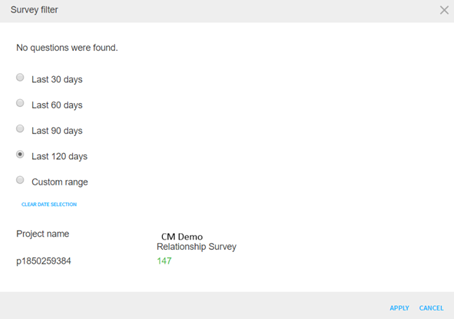
Figure 2 - Filtering the verbatim dates
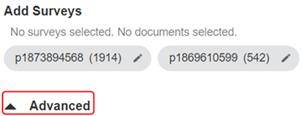
Figure 3 - Click the Advanced arrow to set the number of topics
Advanced - here you can change the number of topics and add Guided topics, with seed words. You may skip this for the first run of data so that you can see what Concept Miner comes back with. You should however use this on subsequent runs to improve your data accuracy.
Your core is now being trained - return to the Core list page to view progress - . Note that this can take some time.

Figure 4 - The Core List page while the core is training
On completion, click the core name to display the list of topics - .
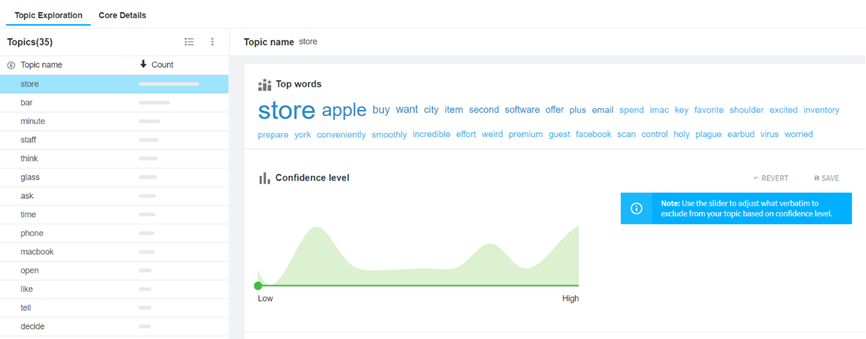
Figure 5 - The topics list
Initially, the topics will be "unsupervised". Later, when you use "Guided Topics", those topics will be given a G icon.