In this article
The second time you run the core, if you have guided Concept Miner with your knowledge, you should see results that are more relevant to your needs - . You will notice that any guided topics are indicated with a G icon. Go through the list of topics again and see if there is anything that you might want to add to the guided topics in a further run. This is why it is a good idea to keep your csv file of updates. You can repeat the process of improving the core as many times as you like, but remember to delete older cores that you do not want to use as you have a limit of 5 cores per account. Once you are happy with what you now have, you can start to review your topics to be used when building your category model.
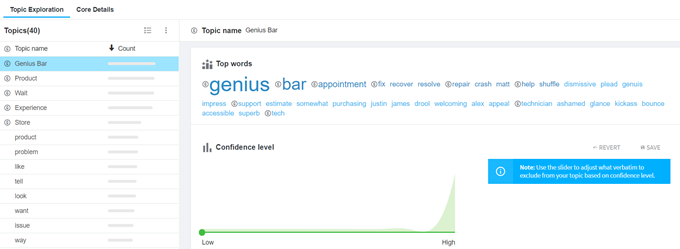
Figure 1 - Reviewing the topics again, and saving the confidence level
Words that have been used as seed words in a guided topic will also have the G icon next to them - .
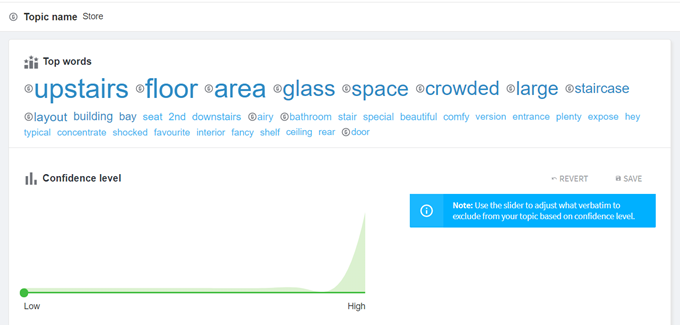
Figure 2 - Seed words with the G icon
If you have used some seed words that weren’t appropriate for the topic (i.e. they may exist in the verbatim but they are not correlated with the topic), they will be shown in red, to indicate that they didn’t influence the topic - .
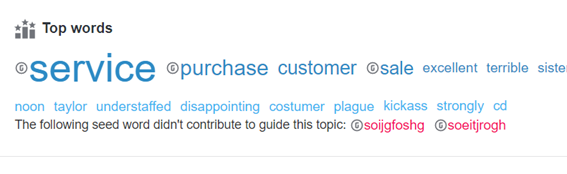
Figure 3 - Inappropriate seed words are indicated in red
If a full list of seed words for a guided topic was not found in your verbatim, the topic will not be created. You will still see the reference in the ‘Core Details’ page, but the topic will not be in your topic list.
When reviewing the topics, first check your top words and the verbatim that have been captured with the highest confidence. Then click on the arrow next to ‘Highest confidence first’ and select ‘Lowest confidence first’ from the drop down. You will then see the verbatim with the lowest confidence rating ordered from the top - . You can adjust the slider to the level that looks right (that is, all the verbatim that are displayed are now definitely part of the topic), and then click Save. The confidence level will now be saved and this is what will be used for the topic if used in your categorization model.
If you move the slider, you can click Revert to get back to the previously saved confidence level.
Note: You can change the confidence level by saving a different point. Be aware that this will only become available in your live analysis when you save a new active version of the model.
Once you are happy with a topic, give it a relevant name that makes it easy to understand so that you know what it is about when you are building your categorization model.
Grouped view of topics:
When Concept Miner analyzes the verbatim, it finds topics based on the associations between words that have commonly been used together. It develops a knowledge of a theme, which will then allow it to bypass bad grammar and spelling mistakes.
Click the  button at the top of the topics to see them in ‘Grouped view’ - . This view shows you all topics that are correlated to one-another. This is useful to see how the topics are related and to further understand your data. These correlations will be useful to note when creating the categorization model.
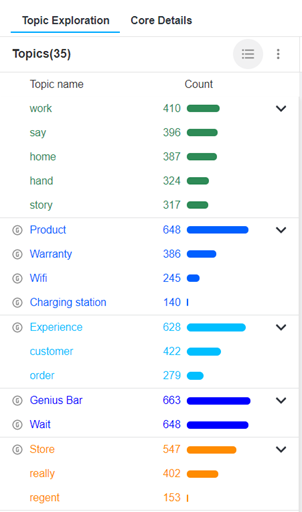
Figure 4 - Viewing the topics in Grouped view
Hiding and Unhiding Topics
As this list of topics is the list that will follow through to your categorization model, you need to keep it as relevant as possible. Some of the topics that are in your core will not be topics that you will want to use in your model, so these ones you need to hide.
To hide a topic, hover your mouse at the end of the topic line and you will see an eye icon - . Click on the icon to hide the topic.
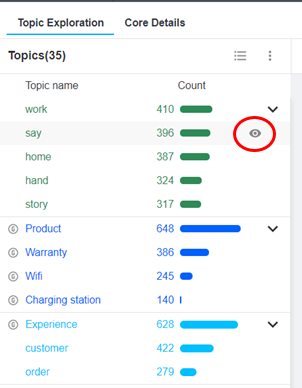
Figure 5 - The eye icon
You can switch between showing only those topics that have not been hidden or all the topics, including those that have been hidden. Change from one option to the other by toggling Show hidden topics in the drop-down menu - . When showing all topics, those that are hidden are shown with the crossed-out eye icon.
The topics that are not hidden will be visible to you when you wish to choose one to add to your categorization model (go to Using Your Core in a Categorization Model for more information).
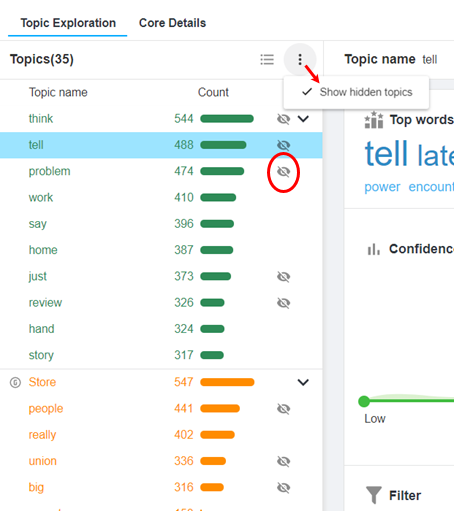
Figure 6 - Showing hidden topics